Building and Running
Setting up Docker
- Install Docker
- Go to Docker preferences and increase the memory allocation.
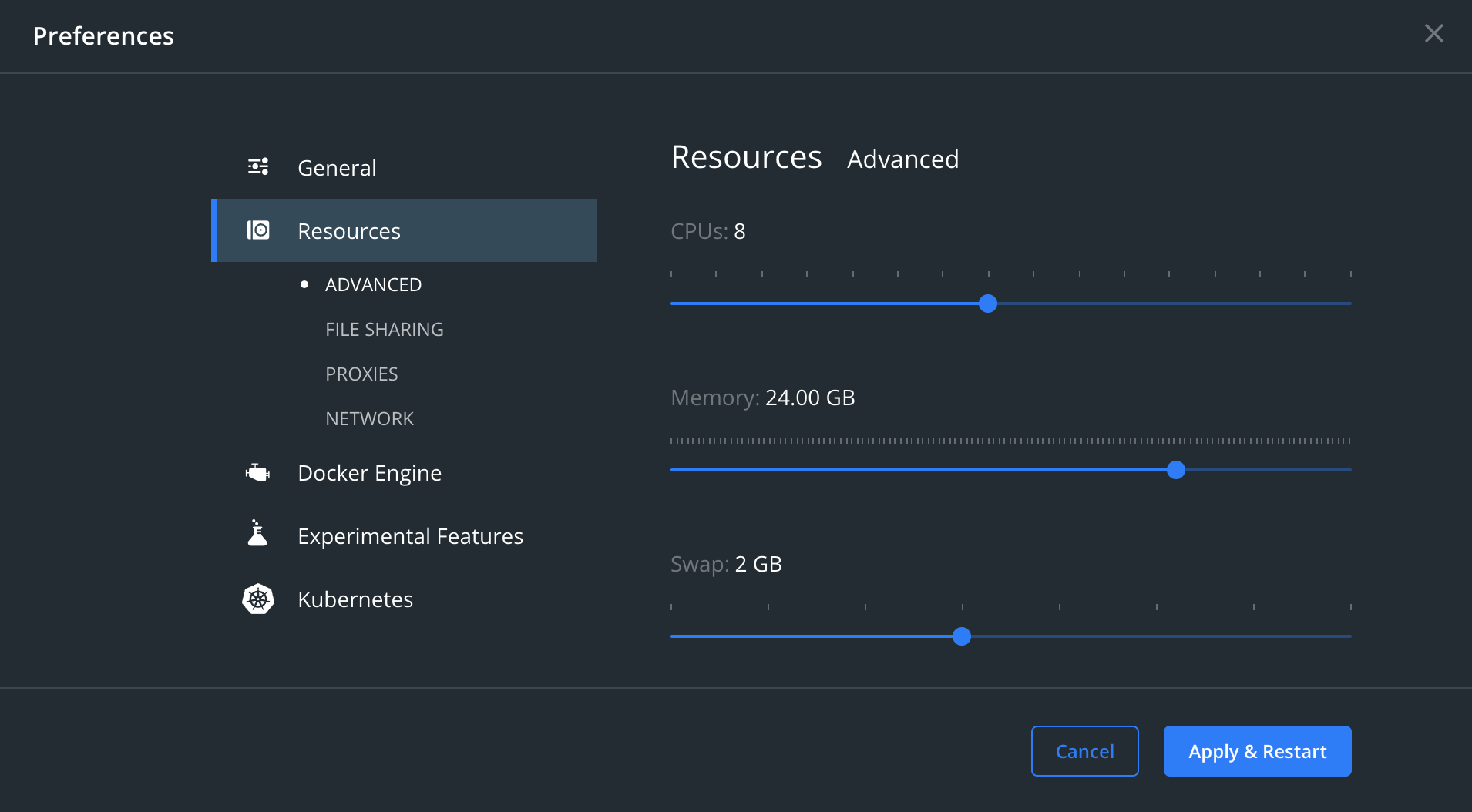 The stack's memory usage is limited to ~20GB, though it should only use that much during heavy workloads. You should
be good to go in any case if you allocate 22GB or more.
The stack's memory usage is limited to ~20GB, though it should only use that much during heavy workloads. You should
be good to go in any case if you allocate 22GB or more. - Add the dsp-api repository directory to Docker Desktop's file-sharing allowlist, under Settings > Resources > File Sharing.
The app service bind-mounts app-config.dev.json from the repository. When the
repository sits outside the allowlist, Docker refuses the mount:
Error response from daemon: mounts denied:
The path .../app-config.dev.json is not shared from the host and is not known to Docker.
The error names only the mount, not the service. Recipes that exclude app, such as
just stack-without-app, never touch that mount and therefore need no allowlist entry.
Running the stack
With Docker installed and configured,
- Run the following:
just init-db-test
to initialize Fuseki's dsp-repo dataset with loading some test data into the triplestore
- Start the entire dsp-stack (fuseki (db), sipi, ingest, api, app, alloy) with the following command:
just stack-up
Note: To delete the existing containers and for a clean start, before creating the knora-test repository explained in the first step above, run the following:
just stack-down-delete-volumes
This stops the knora-stack and deletes any created volumes (deletes the database!).
To only shut down the Knora-Stack without deleting the containers:
just stack-down
To restart the knora-api use the following command:
just stack-restart-api
If a change is made to knora-api code, only its image needs to be rebuilt. In that case, use
just stack-up-fast
which starts the knora-stack by skipping rebuilding most of the images (only api image is rebuilt).
Managing Containers in Docker Dashboard
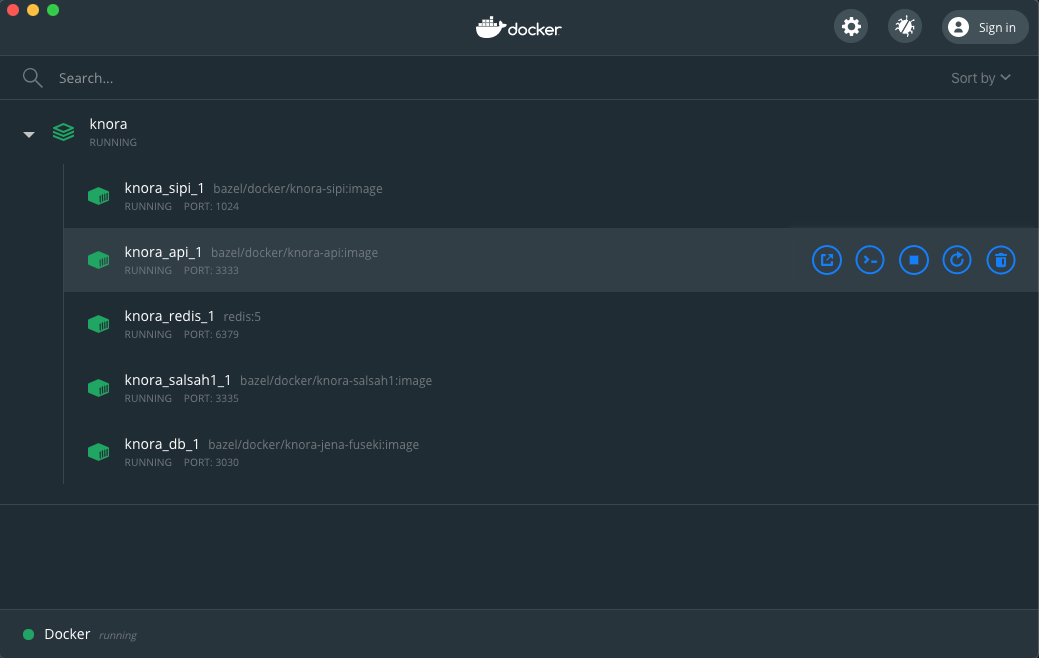
The Docker Desktop is installed on your computer during the installation of docker, it enables easy management of docker containers and access to Docker Hub. To manage your docker containers, docker desktop provides a dashbord.
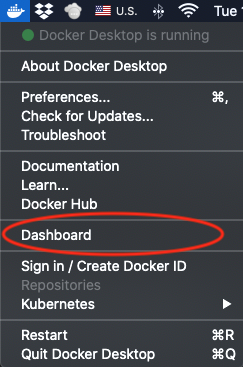
In docker dashboard, you can see all the running containers, stop, start, restart, or completely delete them. For example, when you start the knora-stack as explained above, in the docker dashboard you will see following:
Access the logs
To read information logged out of any container (db, api, etc.), click on the container in the dashboard and choose
logs. The example, below shows the logs of the database (db) container that includes the last SPARQL query sent to the
triplestore.
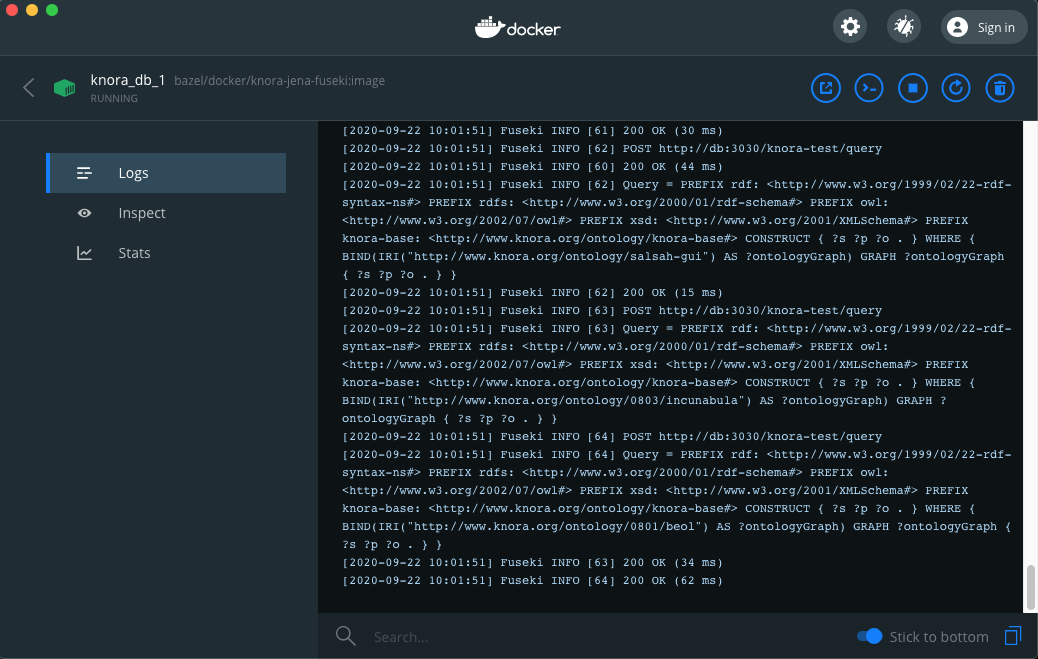
Note that, you can also print out the log information directly from the command line. For example, the same logs of the database container can be printed out using the following command:
just stack-logs-db
Similarly, the logs of the other containers can be printed out by running just stack-logs-api
or just stack-logs-sipi.
These commands print out and follow the logs, to only print the logs out without following, use
-no-follow version of the commands for example:
just stack-logs-db-no-follow
Lastly, to print out the entire logs of the running knora-stack, use
just stack-logs
With the Docker plugin installed, you can attach a terminal to the docker container within VS Code. This will stream the docker logs to the terminal window of the editor.
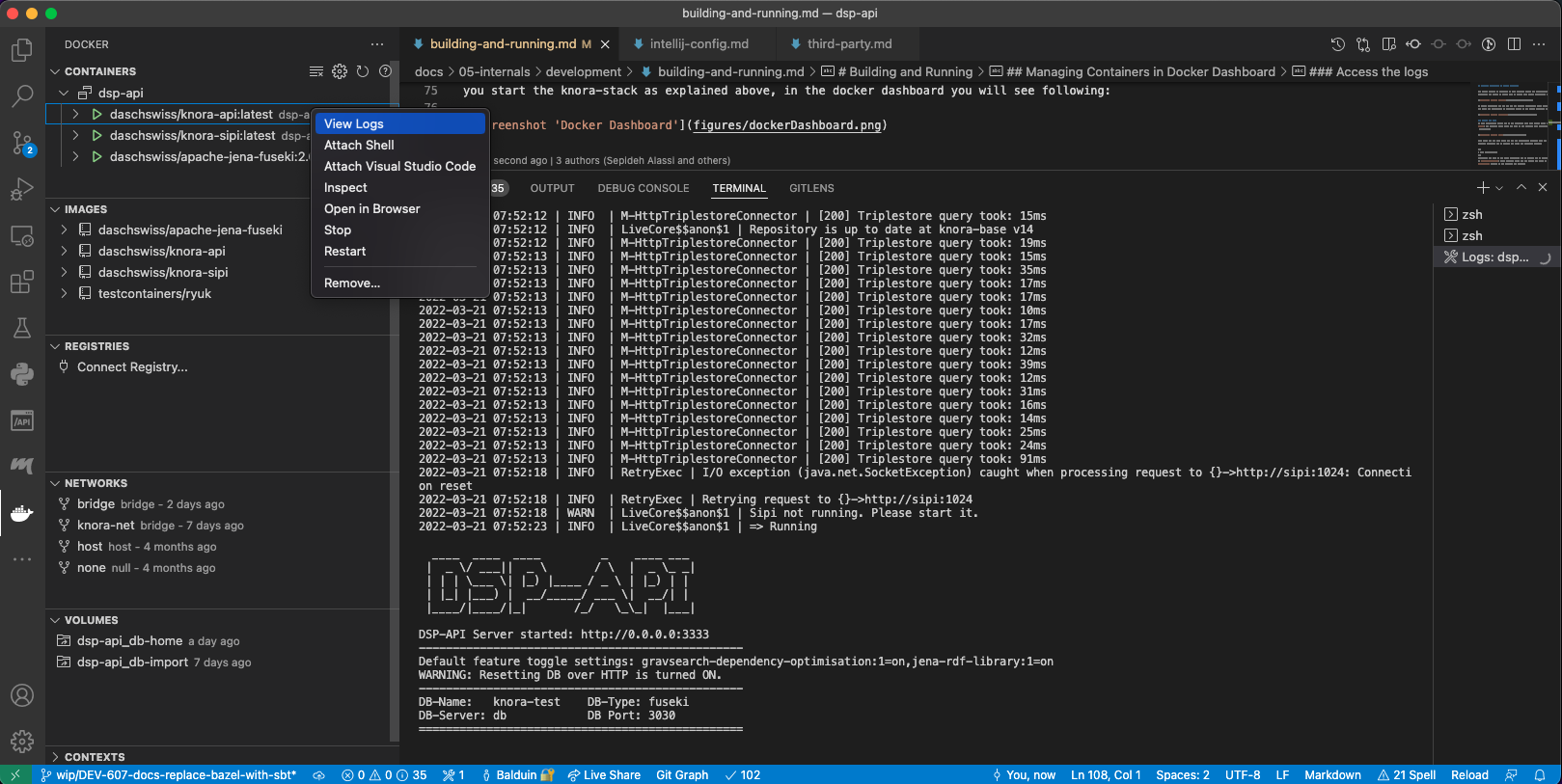
The docker plugin also allows for a number of other useful features, like inspecting the container's file system or attaching a shell to the container.
Running against the dev database
When changes are hard to test with local test data (e.g. they need realistic data), you can run the API locally against the remote dev Fuseki triplestore:
- Create a
.envfile in the repo root withDEV_DB_PASSWORD=<password>(this file is git-ignored). Passwords can be found in ops-deploy/host_vars. - Run:
just run-with-dev-db
- The API will start connected to
db.dev.dasch.swissvia HTTPS.
Running the automated tests
To run all test targets, use the following in the command line:
just test-unit test-it test-e2e
To run a single test from the command line, for example SearchV2R2RSpec,
use Bazel's test filter:
bazel test //modules/webapi:test --test_filter=*SearchV2R2RSpec*
Note: to run tests, the api container must be stopped first!
Build and Publish Documentation
First, you need to install the requirements through:
just docs-install-requirements
Then, to build docs into the local site folder, run the following command:
just docs-build
At this point, you can serve the docs to view them locally using
just docs-serve
Documentation is published to GitHub Pages automatically by CI (.github/workflows/publish-docs.yml) on merge to main.
Build and Publish Docker Images
To build and publish all Docker images locally
just docker-build
To publish all Docker images to Dockerhub
just docker-publish
Continuous Integration
For continuous integration testing, we use Github CI Actions. Every commit pushed to the git repository or every pull request, triggers the build. Additionally, in Github there is a small checkmark beside every commit, signaling the status of the build (successful, unsuccessful, ongoing).
The build that is executed on Github CI Actions is defined in the .github/workflows/*.yml files.
Webapi Server Startup-Flags
The Webapi-Server can be started with a number of flags.
loadDemoData - Flag
When the webapi-server is started with the loadDemoData flag, then at
startup, the data which is configured in application.conf under the
app.triplestore.rdf-data key is loaded into the triplestore, and any
data in the triplestore is removed beforehand.